Room Codes makes it easy to add shareable, code-based multiplayer to your app with just a few API calls.
This documentation will go into details about how to use Room Codes, and how to interact with its main components:
- API Authentication - Using your API Key to request JWT's (JSON Web Tokens)
- Requesting a room - Provisioning a room for your users
- Joining a room - Using the power of Websockets!
- Extending a room - Managing a room's lifespan

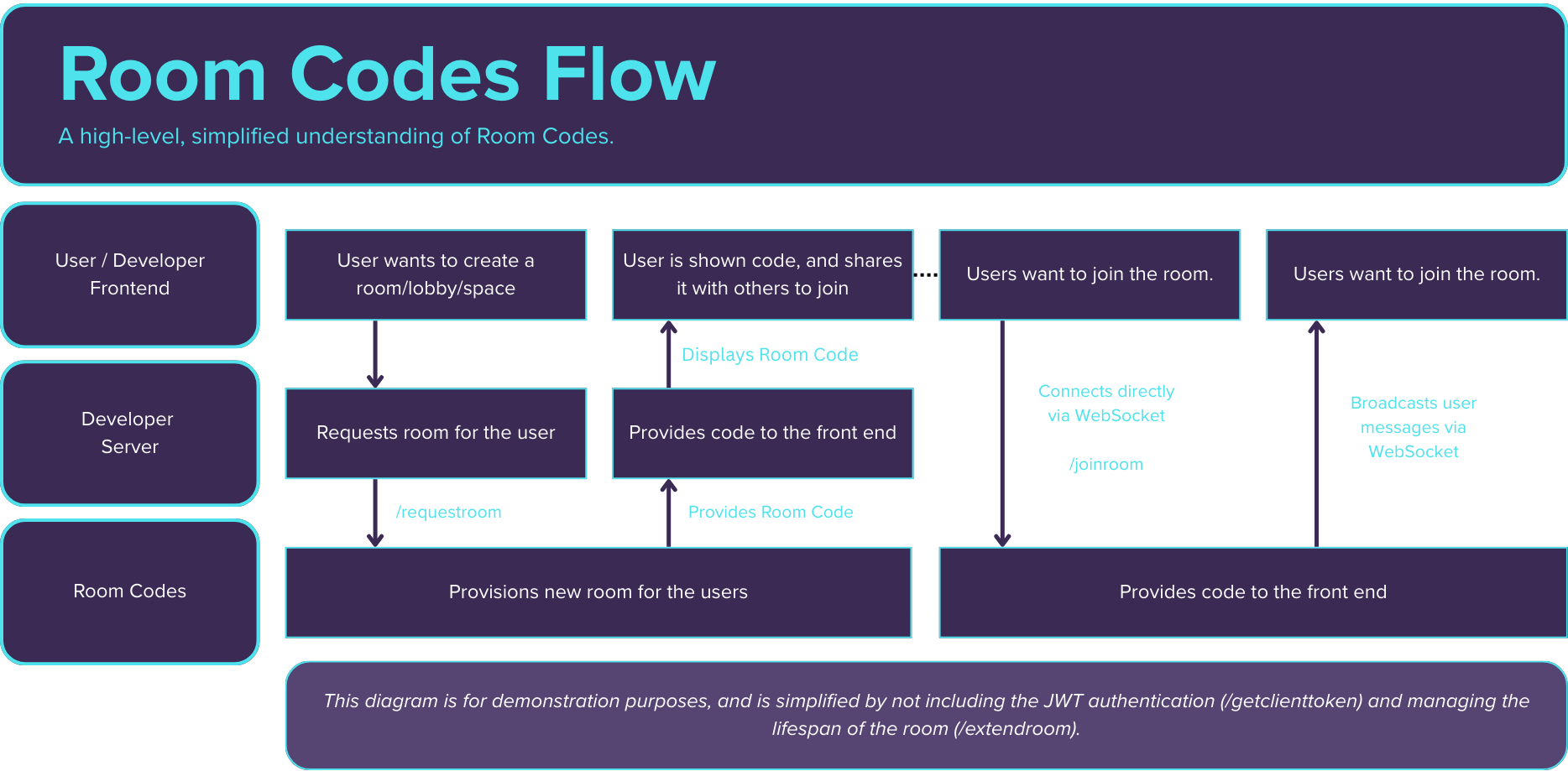
There are many different applications for Room Codes, however below we are going to dive into a high-level example of a single use case, a casual multiplayer game.
In this scenario, here are the specs we are looking at:
- 8 Players per room.
- The game involves players submitting questions and answers to each other.
- First things first, a player will want to start a room.
- How you show the code is up to you, but it will then be up to your players to share the code with their friends who they want to join.
- Once the other users have the code, they can start joining the room!
- We now have users in the room, now it's up to you to manage how the communication looks!
- Now your users are playing, there is only one thing left: Room Lifecycle management.
The player, via your server, will hit our /requestroom endpoint. This will allocate a room, and provide the code back to you.
The user that first joins the room will be the "Host" of the room.
This means that their client will be responsible for managing the rooms lifetime, and in the "HostClient" broadcastType, it means they will recieve all client messages.
This could be as simple as showing the code in the user's client, or you could build ways to share it via Discord or other tools.
The specifics of how you build this is completely up to you!
Each user simply needs to hit the /joinroom endpoint using the room code you generated earlier.
They can do this from any client, they'll just need the room code, and the ability to generate a JWT to ensure you have authorised them to use the API.
If the room is in the 'Broadcast' broadcast type, all users will receive all messages sent to each other. This can be perfect for a simple Peer-To-Peer experience.
If you want a little more control, you can use 'HostClient' broadcast type. This will route all messages from clients to a host user, and the host user broadcasts all of their messages to the users.
By default, a room will last 5 minutes, from it's creation.
This can be extended by intervals of 5 minutes by using the /extendroom endpoint.
If the room expires before the /extendroom endpoint is used, the room is cleaned and closed!
All Room Codes end points use the same base URL, which also contains a version identifier.
The version number will only increase when any change implemented would break backwards compatibility in some way.
For now, there is simply just "v1".
https://room.codes/api/v1/Authentication within Room Codes exists in two forms:
- API Key Authentication
- JWT (JsonWebToken) Authentication
The API Key is only used to request a JWT. This makes it safer for you to provide client-side access to the API.
All other endpoints within Room Codes expect a JWT to be provided.
For standard requests, its expected that the client token (or API key for /getclienttoken) will be provided in the Authorization Header as 'Bearer _YOUR_KEY/TOKEN_HERE_'
The only exception is for joining a room (the /joinroom endpoint). Due to this endpoint upgrading the client to a websocket, the token is expected to be provided as "token" query param in the request.
The goal of this endpoint is to allow you to generate a JWT that you can safely provide a client-side user, that has the following traits:
- Very short expiry. Token's generated from this endpoint expire after ONE (1) minute.
- Scoped usage. A client can only do exactly what you let them do, thanks to Scopes.
To avoid authentication errors, generate tokens just-in-time for each action (e.g., when joining or creating a room), rather than once at app startup.
It's highly recommended that you ensure there are some protections around who and how you generate JWT's, to avoid abuse from malicious users.
Do not generate JWTs directly from the client; always call your backend to request them.
| Key | Value |
| Authorization | Bearer |
| Key | Type | Description | Optional? |
| scope | String | The type of actions that users with this token will be allowed. Only one scope per token. Expects one of:request-room, join-room, extend-room | Mandatory |
{
    "scope": "request-room"
}| Key | Type | Description |
| token | String | The JWT you will use for future authentication. |
{
    "token": "eyJhbGciOiJIUzI1NiJ9.eyJ1c2VySUQiOiI3OGJmMjc5My..."
}Your API Key is important, and should be kept private and away from any client-facing code.
Your API Key can be found on your Room Codes Dashboard.
Scopes are used to determine what kind of 'work' can be done with any given JWT.
Only one scope can be provided per token, to limit the chance of token misuse.
There are three scopes available:
- request-room - This scope is required for the /requestroom endpoint.
- join-room - This scope is required for the /joinroom endpoint.
- extend-room - This scope is required for the /extendroom endpoint.
Now we are really diving into Room Codes! It really just comes down to three very powerful endpoints.
- / requestroom - Provisions a room on our end, and gives you a room code for joining.
- / joinroom - Uses the room code created by /requestroom to connect all of your users together via WebSocket.
- / extendroom - Extends the lifetime of the room requested by /requestroom.
When you use this endpoint, we provision a room for your users to join, and provide you with a room code to be used for joining the room.
| Key | Value |
| Authorization | Bearer |
| Key | Type | Description | Optional? |
| codeLength | An Integer | The length of the code you want to receive. The allowed range varies depending on your subscription level. | Mandatory |
| broadcastType | 'Broadcast' or 'HostClient' | The type of room broadcasting you want. See Broadcast Type for more information. | Mandatory |
| echo | 'true' or 'false' | (Broadcast mode only) Can be set to true if you want message senders to receive their own messages back from the server. | Optional (Defaults to false) |
{
    "codeLength": 4,
    "broadcastType": "Broadcast",
    "echo": true
}| Key | Type | Description |
| code | String | The room code for the room you have just created. |
| expirationTime | Number | The epoch, in milliseconds, for when the room will expire. |
{
    "code": "HZRW",
    "expirationTime": 1755579042503
}There are two broadcast modes available in Room Codes, and they are declared in the configuration when the room is created (/requestroom endpoint).
They are:- Broadcast
- HostClient
There is no single host, every user sees the same data.
If the "echo" configuration option is active, the user will also recieve their own message echo'd back from the server.
The Host assigned will be the first user to connect to the room, and all users to connect afterwards will be clients.
When the Host sends a message, the server will broadcast it to all of the clients.
When a Client sends a message, only the Host will recieve it.
In this version of the API, if the host disconnects, the room is immediately closed. In future versions, alternate methods of handling host disconnections will be added.
This endpoint is used to join an active room.
The first user to join any room using this endpoint becomes the host of the room. The host will recieve updates around the potential expiration of the room, and that user's client will be responsible for using the /extendroom endpoint to keep the room alive, if needed.
Importantly, if the host user disconnects, the room will be closed immediately.
The request is expecting a WebSocket connection.
This request must be initiated as a WebSocket upgrade (wss://). It cannot be called with a standard HTTP client
   const socket = new WebSocket(<JOIN_ROOM_CONNECTION_URL>);

    socket.onopen = function (event) {
        //Handles when the connection opens
    }

    socket.onmessage = function (event) {
        //Handles when the connection receives a message
    }

    socket.onclose = function (event) {
        //Handles when the connection closes
    }

    function sendMessage(message) {
        //Used to send a message back to the server.
        socket.send(message);
    }
After connection all messages sent via the WebSocket are either shared with other users, or the host, depending on the room type.
| Key | Type | Description | Optional? |
| room | String | The room code for the room you want to join. | Mandatory |
| token | String | The JWT to be used for authorization. | Mandatory |
This endpoint is used to extend the lifespan of an active room.
When a room is created, by default it has a five minute lifespan. This lifespan can be extended perpetually by hitting the /extendroom endpoint.
Whenever /extendroom is called, the lifespan is increased by 5 minutes.
This call can be repeated as many times as need to reach the desired lifespan, or called as required for rooms with variable lifespans.
Room Codes is designed so that this endpoint is hit by the "host user's client". This avoids multiple clients having to manage who is extending the room, and also avoids the developer having to implement their own timer system.
| Key | Value |
| Authorization | Bearer |
| Key | Type | Description | Optional? |
| room | String | The room code for the room you want to extend the lifetime of. | Mandatory |
{
    "room": "ABCDEF"
}| Key | Type | Description |
| expirationTime | Number | The epoch, in milliseconds, representing the room's absolute new expiry time. |
{
    "expirationTime": 1755579042503
}Typically any errors that may occur are returned as JSON, with the 'error' attribute containing a message describing the error.
{
    "error": "This is a message that will attempt to describe the error."
}
Errors will be returned with their corresponding HTTP error codes. Some error codes that can be anticipated are listed below.
Always check the error field and the HTTP status code. Do not rely only on one.
| HTTP Response Code | Description |
| 400 | Bad Request. Some part of the request was missing, or incorrectly formatted. Check the error message returned for more details. |
| 401 | The JWT provided was invalid in some way. This can mean the JWT is invalid, expired, or has the wrong scope for the request. Check the error message for more details. |
| 403 | API Key is no longer valid. This could happen for various reasons, including that the account has been removed at the user's request. |
| 404 | No Valid Endpoint. Please check the URL you are using, and the method you are using (GET, POST, etc), matches this documentation. |
| 426 | Expected an upgrade Header for the /joinroom request. Refer to the /joinroom endpoint documentation for more information. |
| 429 | You have exceeded your Usage Point balance for this request. Refer to the Room Codes Dashboard to see your balance. |
| 500 | Unknown server error. Please report to hallway.digital.au@gmail.com. |
Once you have a connection to the room via WebSocket, we switch to a different form of messaging.
Each time a user sends a message to the websocket, it's wrapped with some extra metadata to help identify the context of the message.
The message is then sent to other users depending on the rooms configuration settings.
Messages sent by your users to the WebSocket get wrapped in a response JSON object.
We recommend sending your messages as JSON strings. The server will wrap them and return them in the message field, so you can easily parse them on receipt.
However you can send your data in any form, and it will be returned in the message attribute.
| Key | Type | Description |
| type | String | 'SYSTEM' or 'USER'. Represents the origin of the message. |
| message | String | The contents of the message. |
| code | JSON Object | A code object. For more details check the Room Message Codes section. |
{
    "type": "SYSTEM",
    "message": "{\"roomCode\":\"LOLO\",\"expirationTime\":1755578262614,\"broadcastType\":\"Broadcast\",\"echo\":true}",
    "code": {
        "code": "rc.100",
        "message": "Initial room joining update."
    }
}Any errors returned to the user via the WebSocket will use the "type" of "SYSTEM", and it will provide an error code from the Message Codes table.
Room Codes WebSocket message codes are prefixed with "rc.", and are broken into four categories:
- rc.1xx - Informational. Generally don't require action, just informative.
- rc.2xx - User Generated. A user generated message triggered by a user sending a message to the WebSocket.
- rc.4xx - API Usage Error. Generally an error caused by invalid usage of the API. Includes exceeding usage limits, or attempting to use an expired room.
- rc.5xx - Server issue. Usually means there is an issue between the client and our servers, or on our end.
Below we dive more into the specific of each error category.
| Code | Message | Description |
| rc.100 | Initial room joining update. | Sent to each user on joining the room. |
| rc.101 | A user has joined the room. | Sent to all users when a new user joins. |
| rc.102 | A user has left the room. | Sent to all users when a user disconnects from the WebSocket. |
| rc.103 | You are the host of this room. | Sent to a user when they are the assigned host of the room. |
| rc.104 | The host has left the room. | Sent to all users when the host disconnects. |
| rc.105 | A user has joined before the host. | Unused for now. Will indicate when a user joins before the designated host. |
| rc.106 | The room will expire in 30 seconds, if not extended. | Sent exclusively to the room's host. Indicates 30 seconds until the room has expired. This should be used as an indicator to use the /extendroom endpoint, if more time is needed. |
| rc.107 | The room lifetime has been extended. | Sent exclusively to the room's host. Indicates that the room's lifetime was succesfully extended. |
| Code | Message | Description |
| rc.200 | This will be the content of the users message. | A message sent from a user to the WebSocket. |
| Code | Message | Description |
| rc.400 | Room closed due to time expiration. | This is sent to a user who attempted to message the room after the room has expired. |
| rc.401 | API usage limit has been reached. | The API Key has run out of enough usage tokens to afford this action. |
| Code | Message | Description |
| rc.500 | Unknown server error. Please report to hallway.digital.au@gmail.com. | This is an issue that probably isn't your fault. Reach out to us with us as much info as you can! |
Some of these endpoints and actions have a "Usage Point" cost associated with them.
Accounts are provided with a daily allowance of tokens, depending on your subscription level.
For exact information on the token usages and subscription levels, check out the Pricing Page.
Your total point balance can be viewed while logged in, on the Dashboard.
If you attempt an action that will exceed your usage point balance, you will receive an error.
If you are on the Premium subscription plan, your daily usage points rollover, and accumulate over time.
As long as you maintain a subscription, the usage points are yours to keep. On cancellation your balance is frozen, for when you choose to resubscribe.
If you were on a Premium subscription, but changed back to free we don't wipe your balance, instead it's frozen.
If you choose to resubscribe, your frozen balance is immediately unfrozen, and accessible to you again.
NOTE: This feature does not apply to the free tier, as the tokens earned from free tier do not rollover.
For any questions or feedback, please reach out via one of the channels provided on the Contact page.
Thank you for using Room Codes!
All of your support, and feedback, are greatly appreciated!
We are always trying to improve Room Codes consistently and substantially, and we can only do that with your feedback.
Happy Coding!
- Josh from Hallway Digital, and Room Codes
| Word | Definition | Link |
| Broadcast | A room in 'Broadcast' mode, will send all messages it receives, to all connected users. | - |
| HostClient | A room in 'HostClient' mode, will have a dedicated host user. This host user will receive all messages sent by clients. The clients will only receive messages sent by the host. | - |
| JWT | A JSON Web Token. A token used by the client to verify that it's been authenticated by the server. | Learn more |
| Scope | Scope refers to the type of actions that a JWT is authorized to use. A JWT must have the specific scope, mentioned in this documentation, to perfom specific actions. | - |
| WebSocket | A WebSocket is a two-way communication session between a client and the server. | Learn more |